You can edit a page’s header image in 4 easy steps:
NOTE: Ensure you have banner image uploaded to the Content Library.
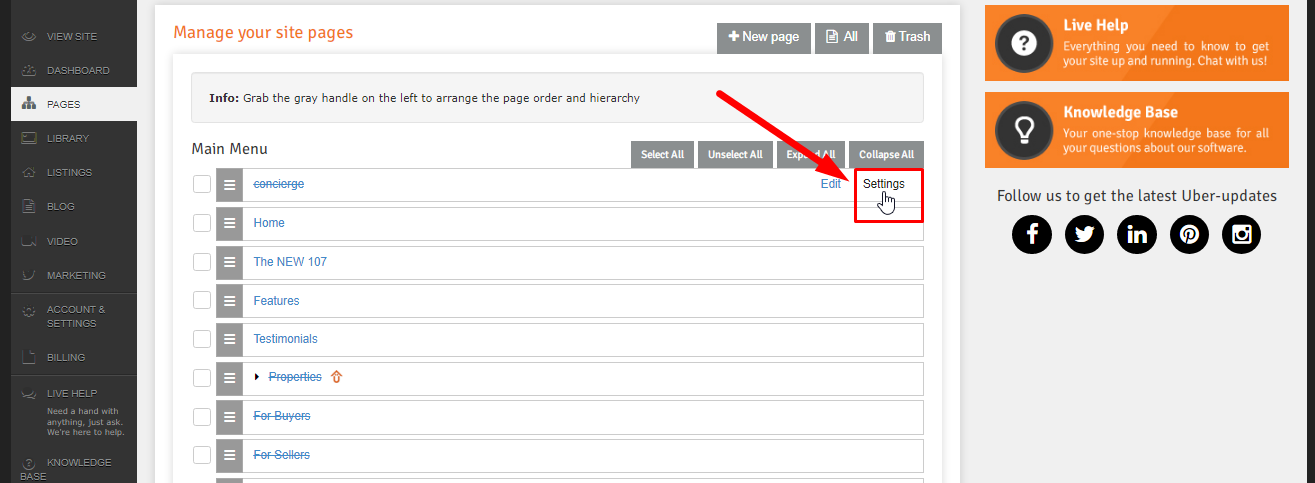
- Login to your Control Panel and click on the ’Pages’ tab.
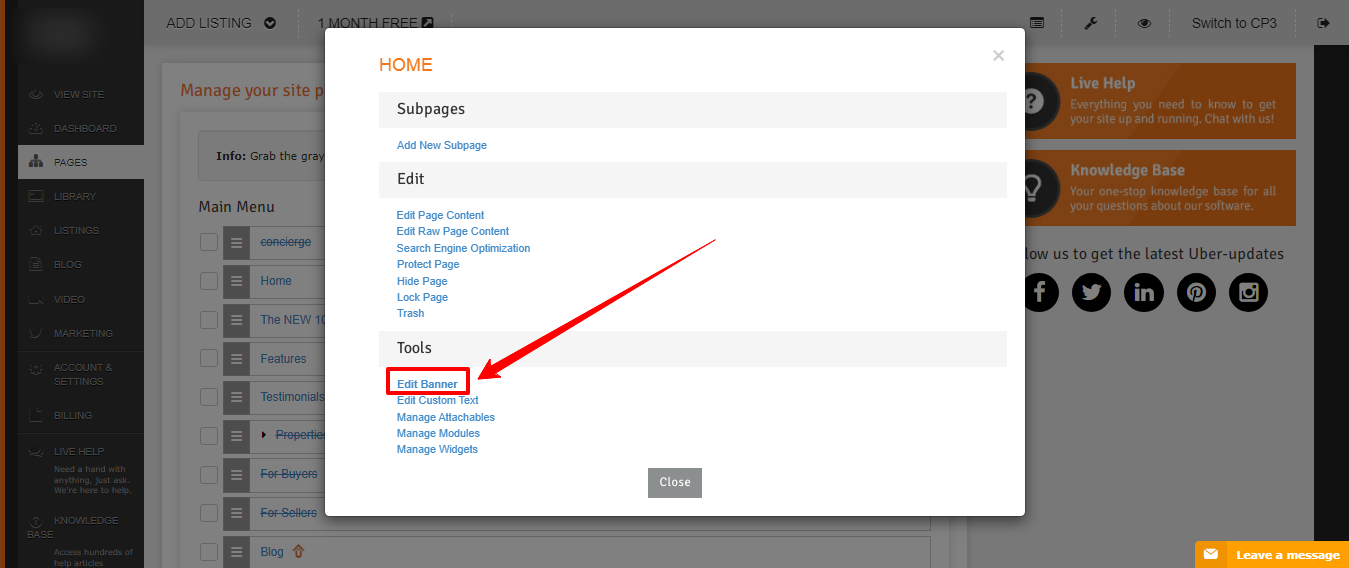
- Hover over the page whose header you wish to change and click ’Settings’ and select Edit Banner.
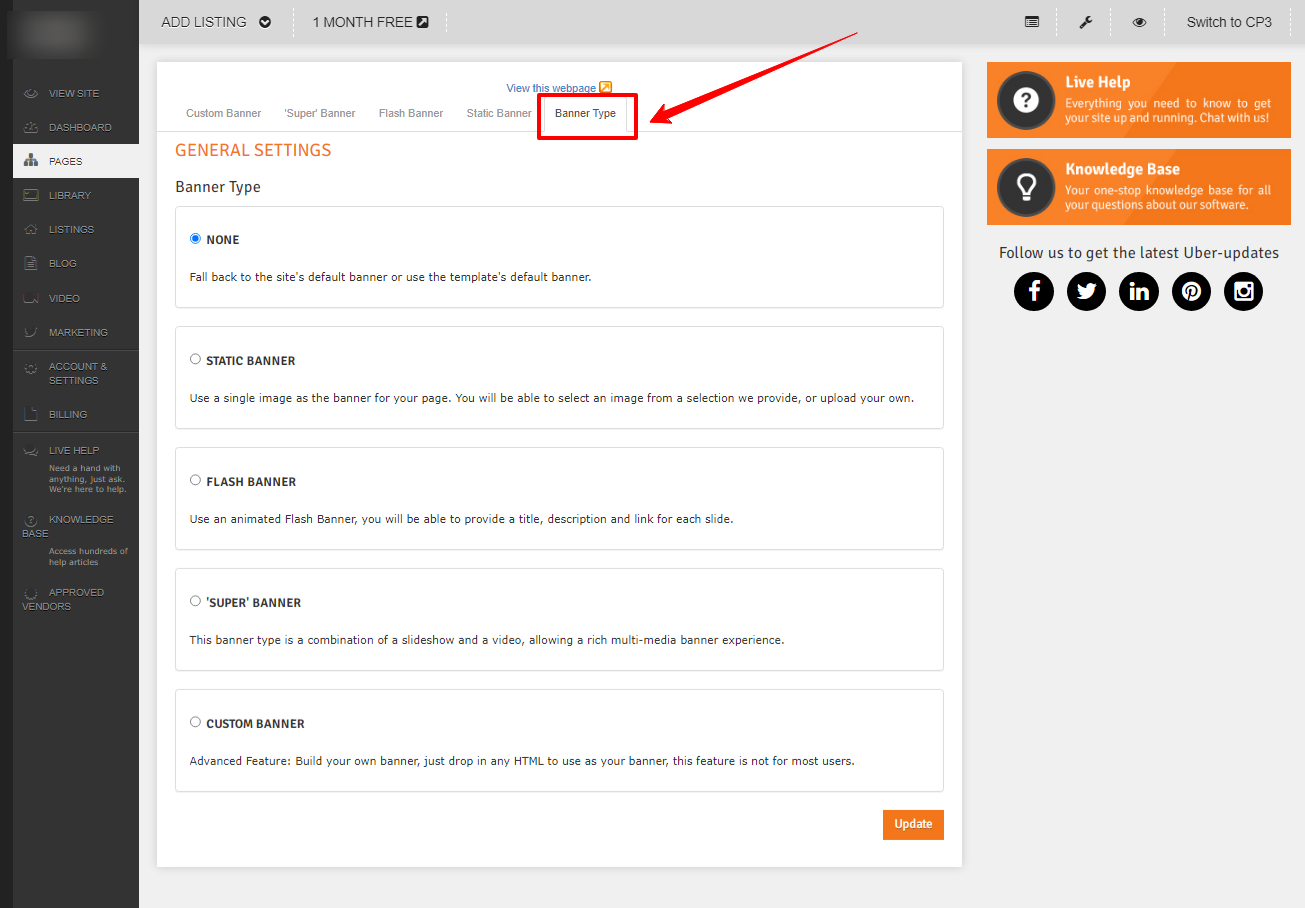
- Click the correct Banner Type tab and follow the instructions below. You can upload new banners at the bottom of this page.
- Click the Update button to save the new banner.
NOTE: To change the header image for all pages click on the ’Edit Default Page Header’ near the bottom of the Content Manager.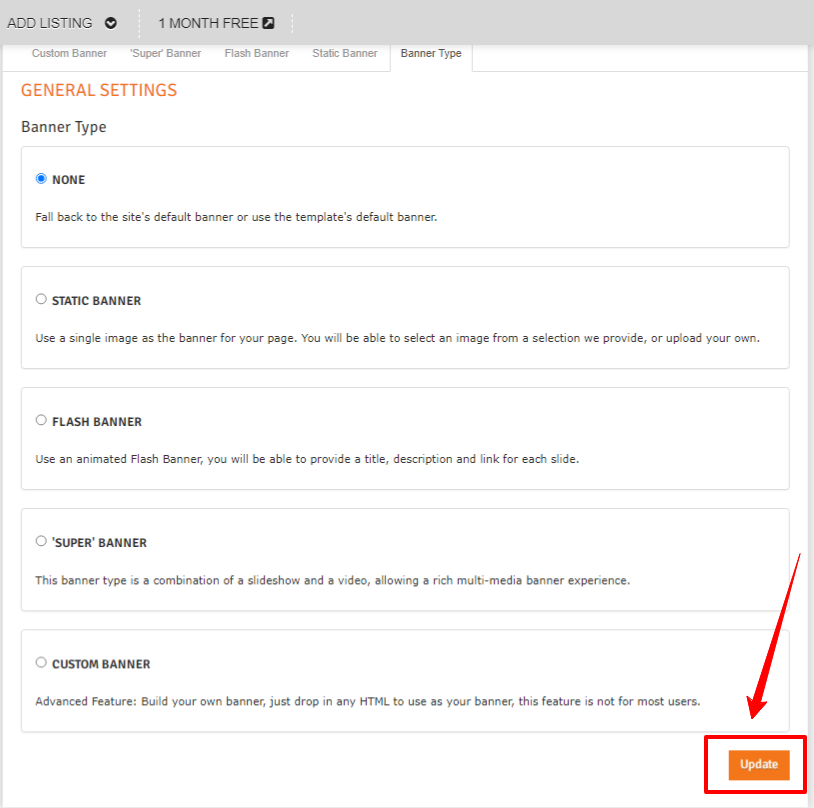
- Click the correct Banner Type tab and follow the instructions below. You can upload new banners at the bottom of this page.
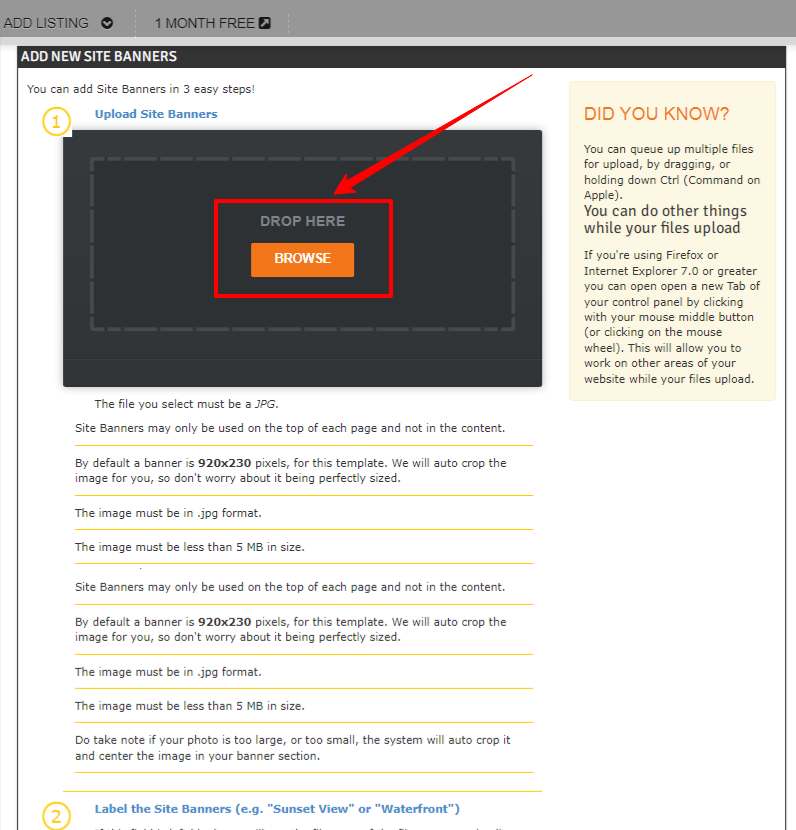
- Choose the banner for the page from the dropdown and click ’Update’.
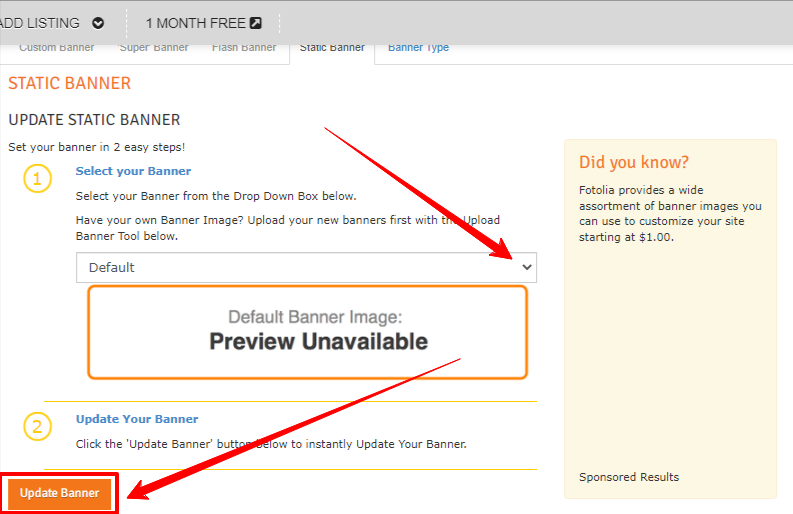
NOTE: To return to the default header banner choose ’Use Default Banner’ from the dropdown and click ’Update’.
Congratulations! You’ve just just edit a page’s banner image.